A Guide to Record Computer Audio and Your Voice at the Same Time on Windows
Sound plays just as an important part as the picture when you are recording a screen video. This includes a tutorial or a lesson in an online class or a gameplay video. Many people run into the same problem. They are unable to record the sound of computer or what they are saying at the same time. This may cause the video to have a feeling of missing.
If you want to record the sound and your voice of your computer together, you need the right program. That is where iTop Screen Recorder helps. It lets you easily capture both system sounds and microphone audio at once without any complicated setup.
Here we will find out what this software can do, its key features, and simple steps to record both types of sound together on Windows.
Why Recording Both System Sound and Microphone Is Important?
If you are recording a software tutorial, an online meeting, a Zoom class, a gameplay session, and a reaction video. You probably want to capture two kinds of sound in all these cases.
- System audio: sounds from your computer like music, game sounds, videos, or notifications
- Microphone audio: your voice explaining what is happening
If you only record the system sound, people would not hear what you are saying. If you only record your voice, they would not hear the important sounds on your screen. Recording both together makes your video clear and easy to understand.
Introduction to iTop Screen Recorder
iTop Screen Recorder is a windows-based application that allows one to capture their screen and audio without any hassle. It is compatible with Windows 10 and 11. It allows you to select the type of recording on your screen, sound, web camera, and games you want.
The software is user friendly and has the buttons and labels clearly defined. Thus, you do not have to be a technological expert to use it. You can switch between recording options in a few clicks. iTop screen Recorder also allows to record audio, take screenshots, and do some elementary editing, all on one screen, not just only make videos.
Key Features That Make Recording Audio Easy
Here we will look some of the key features enabling you to both record the sound of your computer and your voice simultaneously. With these features, it is easy to produce excellent videos with audio and visual effects that actually complement each other.
Dual Audio Recording (System Sound + Microphone)
Among the most prominent features of iTop Screen Recorder is that it allows letting your system sound and your microphone be recorded simultaneously. It implies that you can record all the activities that happen on your screen plus your voice as well in a single recording.
Besides, you can also change the volume on each. So, your voice and the computer sounds stay balanced and clear.
Flexible Screen Recording Options
During recording of the audio, you also get a control of what section of your screen you desire to record. You have an option of recording the entire screen, a part or a window or a fixed size of what you want to record.
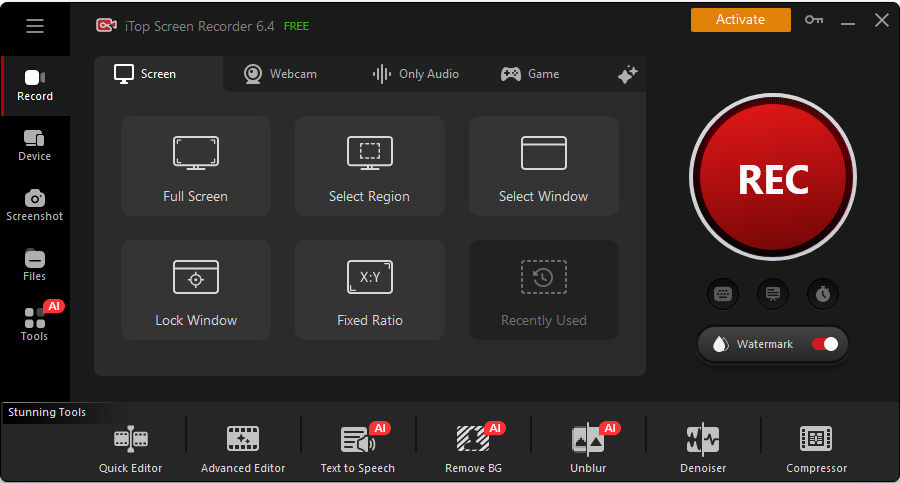
The advantage of this flexibility is ideal in case you are creating a tutorial or you just need to demonstrate a single application or a specific area of your screen.
High-Quality Videos
iTop Screen Recorder lets you record videos in high resolution with smooth frame rates. This means your videos will look sharp and run smoothly, which is perfect for things like online classes, product demos, or gaming videos.
Clear video combined with clear audio makes your recordings look professional and easy to watch.
Webcam Recording
You can also turn on the webcam recording feature in case you want to be more personal and show your face. Video of your web-cam will be on the screen as the software captures audio of your computer and voice of your microphone at the same time.
This can be actually handy in reaction videos, online presentations, or virtual lessons where it can be good to see your face so as to relate with your audience.
Built-in Video Editor
Once you have recorded it you can just cut out any errors or any section that you do not want within the program itself. In case you made a mistake at the start or the end, then you do not have to switch to another application. Quickly you can just trim it in iTop Screen Recorder.
Save Videos in Different Formats
You are also able to save your recordings in common formats such as MP4, AVI among others. This ensures that it becomes easy to post your videos in YouTube, share it with your clients or share it with your friends or students.
Special Game Recording Mode
iTop Screen Recorder has game mode in case you wish to record your gameplay. It records not only your game but also your voice. It consumes less power of your computer and thus is found not to cause lag during recording.
Audio-Only Recording
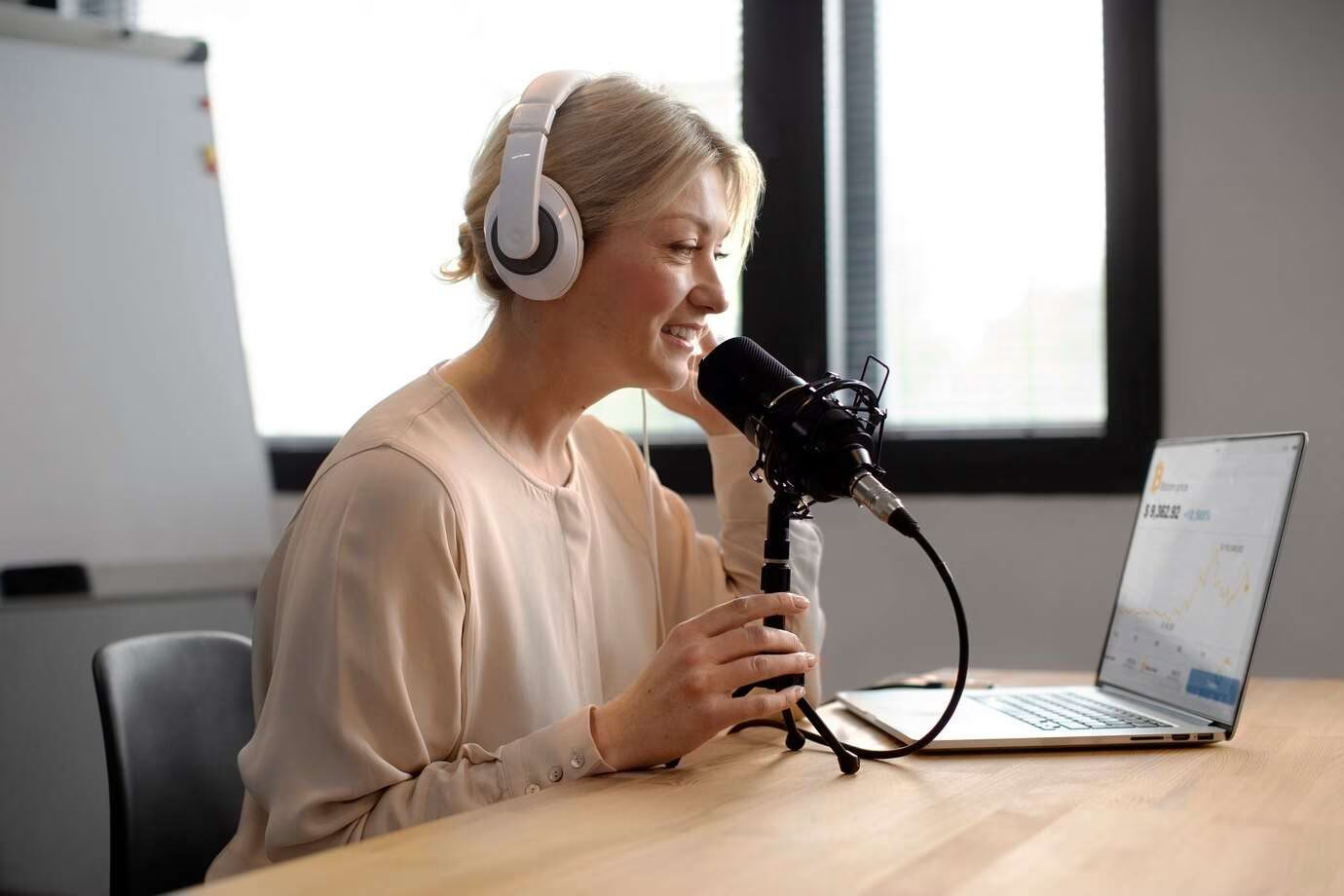
Sometimes, you might just want to record sound without the video. The audio-only mode lets you capture system sounds, your microphone, or both together. This is perfect for making podcasts, recording music, or saving online radio shows.
How to Record System and Microphone Audio Together?
Let’s go through the simple steps to record both your computer’s sound and your voice at the same time using iTop Screen Recorder.
Download and Install the Software
First, go to the official iTop Screen Recorder website and download the Windows version. After the download finishes, open the setup file and follow the instructions on the screen. The installation is quick and easy. Open the program when it is done.
Choose Your Recording Mode
When the program opens, you will see options like Screen, Audio, Game, and Webcam.
- Pick Screen mode to record your screen along with sound.
- If you only want to record sound without video, choose Audio mode.
Turn On System Sound
On the main screen, look for the speaker icon labeled for system sound. Click it to turn it on. You can adjust the volume if you want. Try playing a sound on your computer to make sure the system audio is working.
Next, click the microphone icon to enable it. Say a few words to test if it is picking up your voice. You might see a small sound bar moving when you talk.
Adjust Settings (Optional)
Before you start recording, you can open the settings to:
- Choose the audio format
- Set the recording quality
- Pick where your files will be saved
- Adjust frame rate if you are recording the screen
For tutorials, the default settings usually work well. If you are recording games, you might want a higher frame rate for smoother video.
Pause or Stop Recording
You can pause and resume anytime during recording. When you are done, click Stop. Your video will open in a preview window.
Preview and Edit Your Recording
Watch your recording to check if your voice is clear and the system sound is loud enough. Ensure that there is a balance between both sounds. You can also use the inbuilt editor to trim out any component you do not require.
Final Thoughts
It has never been easier to record the sound of your computer as well as your microphone simultaneously. With iTop Screen Recorder you can easily turn on both the system audio and microphone and set the volume levels. It is available with screen capture, support of webcam, and in-built editing. These will provide you with all you need to have a smooth and professional audio-video recording on windows.
Stay in touch to get more updates & news on Juntosseguros!